
Run a live session in the Virtual Tabletop
Updated Jul 22, 2026
2 min read
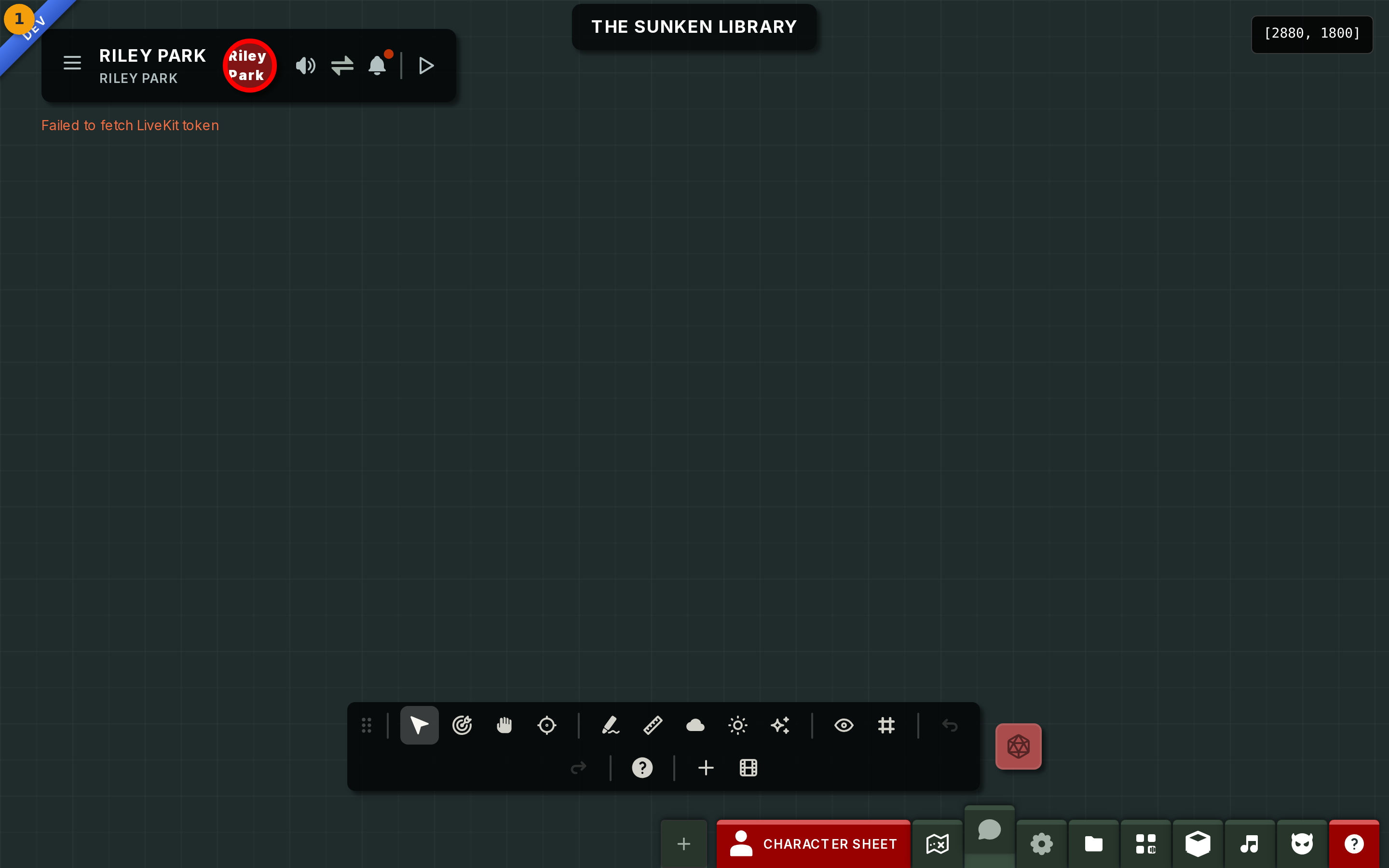
Step 1: Open the Virtual Tabletop from your campaign board
Select Quick Launch on your campaign board to enter the Virtual Tabletop (badge 1). The map fills the stage immediately. Players appear in the right panel as they join.
This is your at-the-table view for the whole session. Everything you need to run the game is reachable from here.
Step 2: Locate the toolbar
Find the toolbar (badge 2) on screen. It groups every in-session control into one place.
On a wide screen the toolbar floats and can be moved aside using its drag handle. On a narrower screen it docks as a compact bar along the bottom; tap it to expand the full set of controls.
The toolbar contains: Select, Pan, Ping, Sketch, Ruler, Fog (GM only), Lighting (GM only), Visibility, and Dice.

Step 3: Use the drawing, measurement, and vision tools during play
Activate Sketch (badge 3) to draw directly on the map. Use it to mark spell areas, block out quick encounter zones, or annotate a point of interest.
Activate Ruler to measure distances against the grid. Activate Ping to flash a marker at any point on the map that all players see instantly.
Use Fog and Lighting to shape what players can see as tokens move through the map. Both tools are GM-only and have no visible effect on the player view until you commit a change.

Step 4: Manage players in the players panel
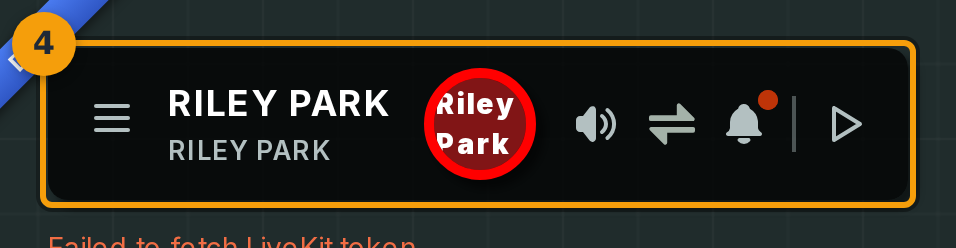
Find the players panel (badge 4) on the right side of the screen. Each row shows a player as they join the session.
Each row displays voice and video status, the character the player has brought to the campaign, and a connection indicator. You may see your own player rows and any others currently connected, or an empty panel if no one has joined yet.
Select a row to expand player options. From there you can mute a noisy microphone or transfer the GM mantle to that player for a scene.
Step 5: Roll dice during the session
Open the Dice control from the toolbar (badge 5) to roll directly from the tabletop. You can also roll from a button on a character sheet, or type a /roll command in chat.
All three paths feed the same dice tray, so every player sees the result land on screen at the same time.
See the Roll dice in session guide for the full rolling reference, including modifier syntax and roll history.
