Create a frame in The Forge
Updated Jul 22, 2026
2 min read
Step 1: Open the create menu and choose New Frame
Open The Forge. Locate the create menu trigger in the Forge tree (badge 1) and click it.
Select New Frame from the menu. The new-frame dialogue opens.
Step 2: Choose a game, set the content category, and name the frame
Use the first select to pick the game this frame belongs to. Once you choose a game, the second select unlocks so you can set the content category.
Type a name into the name field so you can find the frame later.
The right-hand panel shows folder options. Leaving the location set to Personal Content places the frame in your private library. Select a different folder if you want to organise it elsewhere.

Step 3: Submit the form to create the frame
Check that the game, content category, and name are all filled in. Then click Create Frame.
Fabled saves the frame to your library and opens it in the Frame Editor straight away.
Step 4: Start building on the Frame Editor canvas
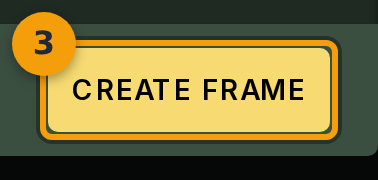
The Frame Editor opens on your new frame's root container. You will see a message indicating this is the root container and that you can drag components from the palette to build the frame.
Drag components from the left palette onto the canvas to define how the frame displays element data. For a full tour of the editor, see the Customise a frame guide.