Find Scheduled Sessions and Player Availability
Updated Jul 22, 2026
1 min read
Step 1: Open your campaign and select the Calendar tab
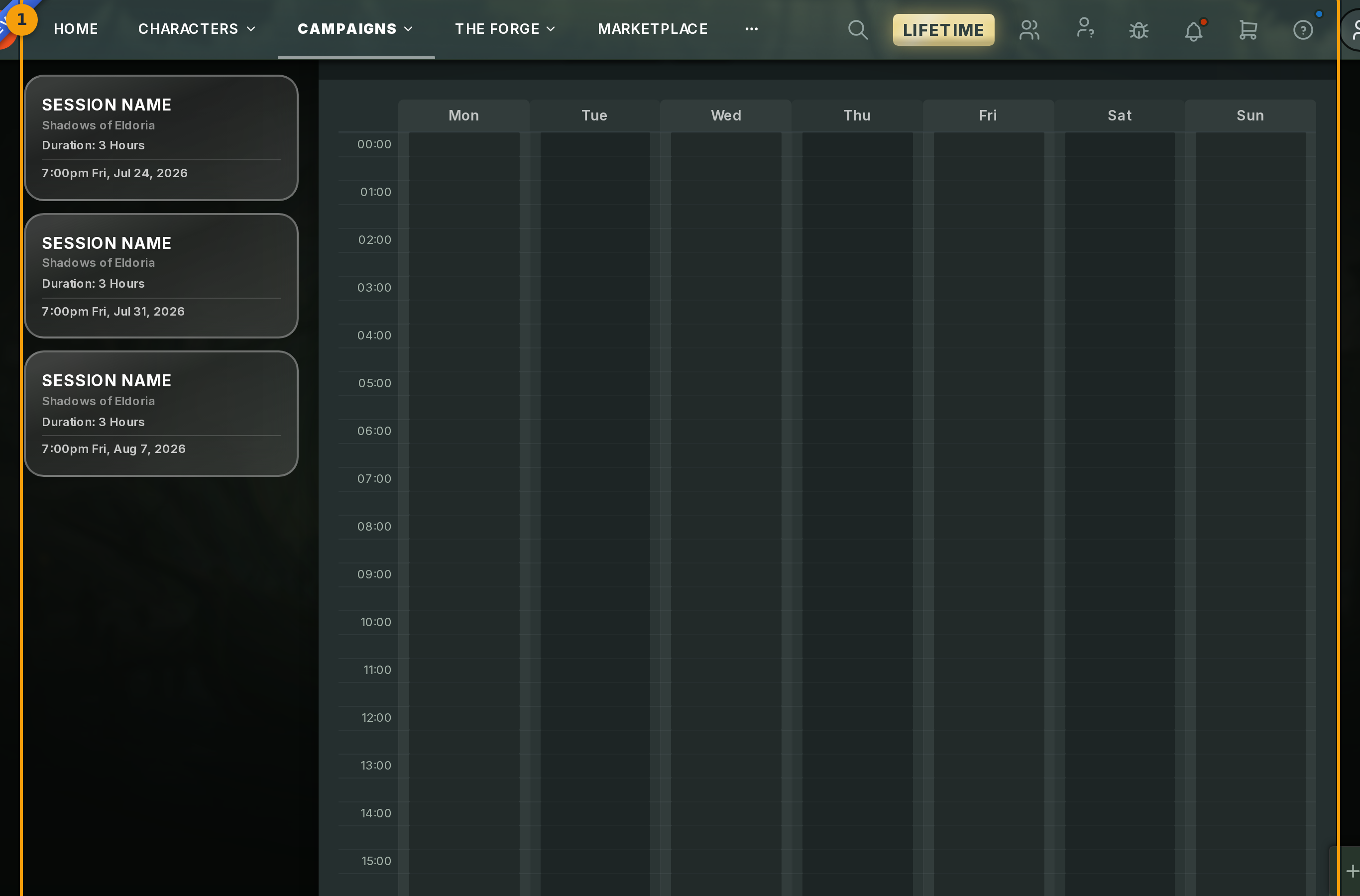
Open any campaign in Fabled. Along the top of the campaign page, click the Calendar tab (badge 1).
The page splits into two columns. The left column lists your scheduled sessions. The right column is the player-availability grid.
Step 2: Toggle between Upcoming and Completed sessions
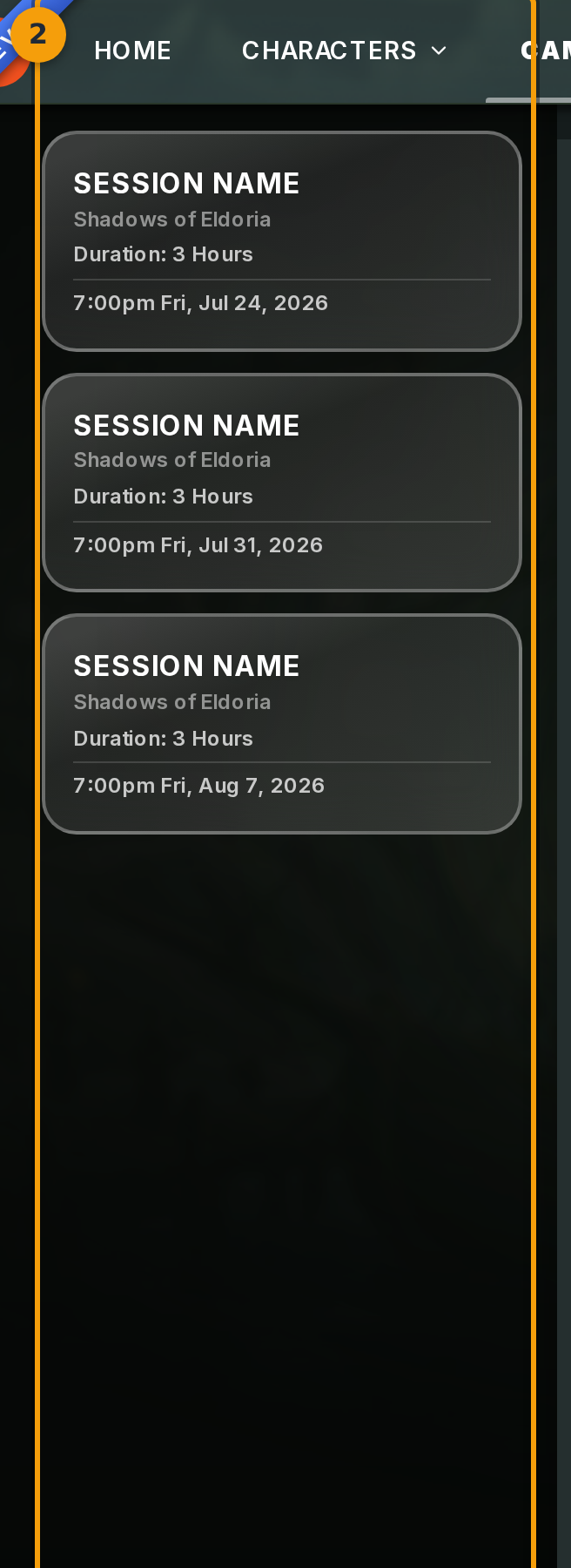
At the top of the left column, click either Upcoming or Completed (badge 2) to filter the session list.
Each card in the list shows the session name, start time, and duration. Your campaign may show existing sessions or an empty state if none have been scheduled yet.
Step 3: Check player availability and schedule a session
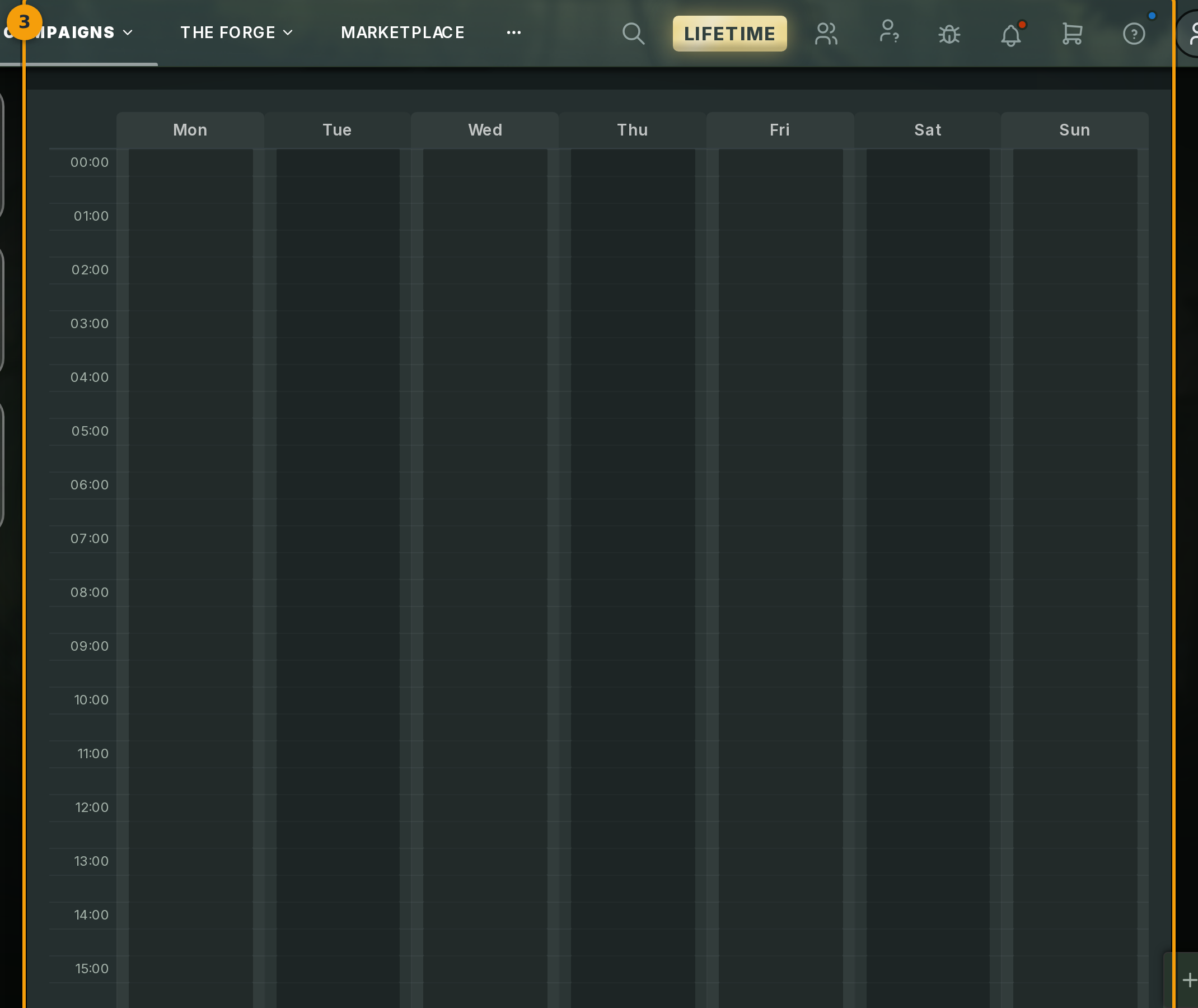
The right-hand panel (badge 3) overlays every player's free slots for the week. Slots where all players are available appear highlighted.
As GM, click any slot to open the schedule menu and create a session at that time.
If the panel is empty, your players have not yet marked their availability. Share the campaign link with them and ask them to set their free times before you schedule.