Invite players to a campaign
Updated Jul 22, 2026
2 min read
Step 1: Open the Members panel and click Manage members
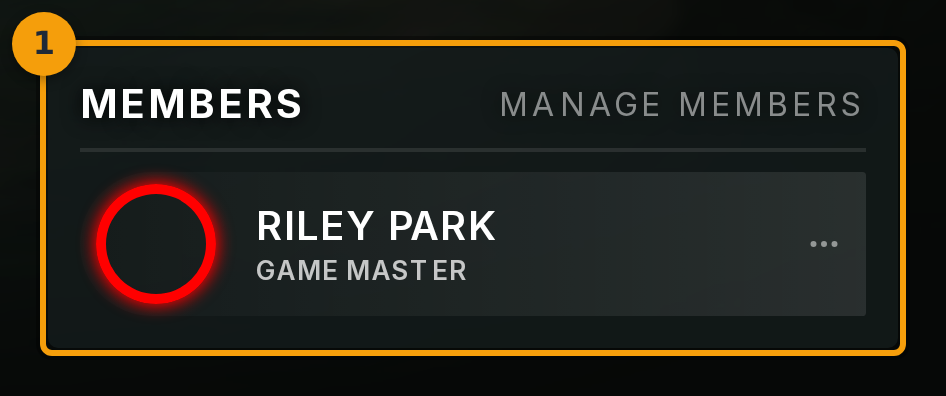
Open your campaign from your Campaigns list. The campaign lands on its Overview tab. On the right side of the screen, the Members panel lists everyone currently in the campaign.
Click Manage members (badge 1) to open the invite screen. This option is visible only to the Game Master. Players cannot invite others to the campaign.
Step 2: Share the invite link or QR code
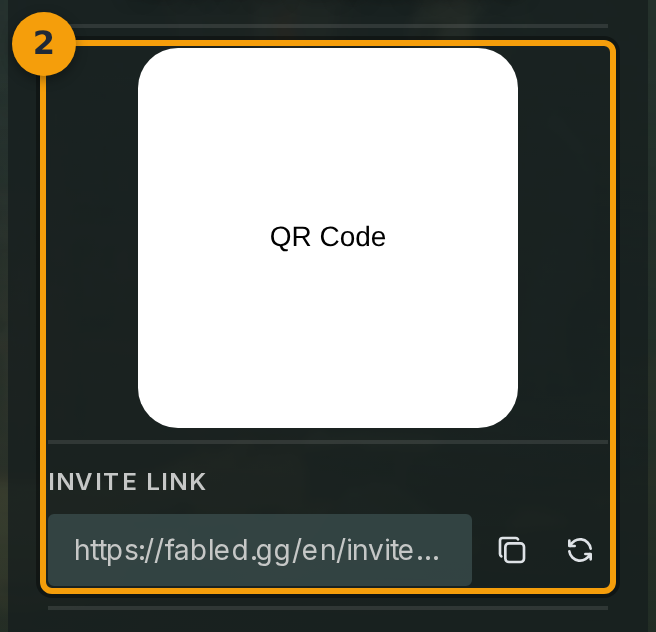
The Members screen shows a shareable invite link and a QR code (badge 2). Anyone with the link can request to join your campaign.
To revoke the current link and generate a new one, click the refresh icon next to the link. The old link stops working immediately.
Step 3: Copy the invite link to your clipboard
Click the copy icon (badge 3) to place the invite link on your clipboard. Paste it into Discord, a group chat, email, or anywhere your group communicates.
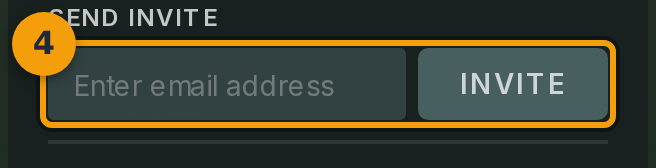
Step 4: Invite a player by email address
Type the player's email address into the email field (badge 4), then click Invite. Fabled sends them an invitation link by email.
If the recipient does not have a Fabled account yet, they are guided through sign-up before they join your campaign.
Step 5: Check pending invitations
After you send an invitation, the player appears in your Invited list with the status Pending Invite (badge 5). They stay in this list until they accept.
To cancel an invitation you sent by mistake, click the three-dot menu on the player's row and select Revoke invite.

Step 6: Invite a player from your Fabled friends
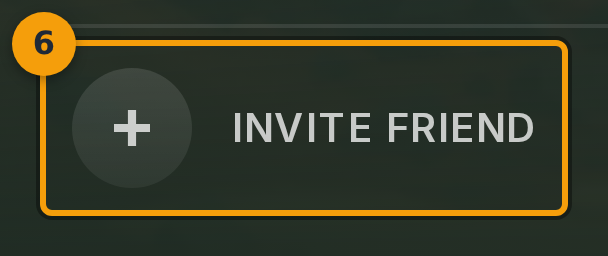
Click Invite Friend (badge 6) to search your Fabled friends and recently played-with players.
Select the person you want and send a one-click invite. No email address is needed when the player already has a Fabled account.