
Upload images and videos in The Forge
Updated Jul 22, 2026
1 min read
Step 1: Open the Create menu in The Forge sidebar
Click + Create New (badge 1) at the bottom of the Forge tree. This opens the creation menu, which is the starting point for every type of Forge content: campaigns, characters, frames, books, and media uploads.

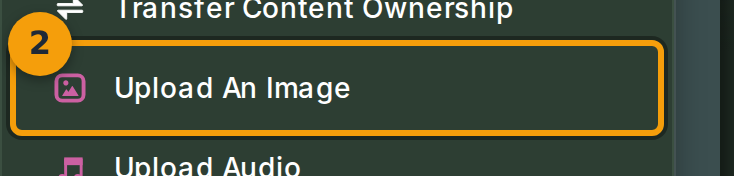
Step 2: Select Upload Image from the menu
The menu groups actions by kind. Find the Advanced Tools section (badge 2). It lists Upload Image, Upload Audio, and Upload Video. Each option opens the upload dialog with the correct file-type filter pre-set. Click Upload Image to add a picture to your library.
Step 3: Drop or select a file in the upload dialog
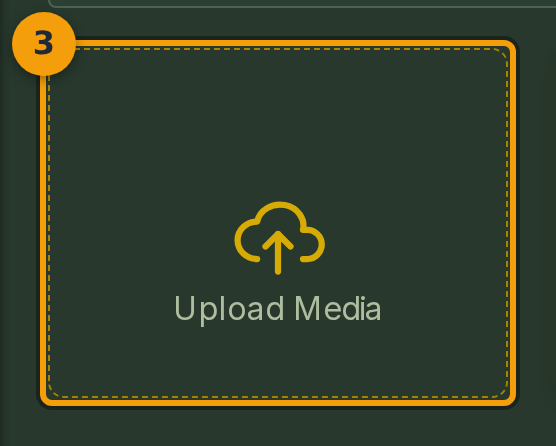
Drop a file onto the upload zone (badge 3), or click the zone to open a file picker. Accepted formats for images are PNG, JPEG, and GIF. The dialog shows upload progress once a file is selected.
Step 4: Confirm the asset appears in the Forge tree
When the upload finishes, the new asset appears in the Forge tree under Personal Content (badge 4). It also lands in your Media library and is immediately available to use as a character avatar, frame background, or scene tile.
