Publish a Framework to the Marketplace
Updated Jul 22, 2026
2 min read
Step 1: Open the create menu in The Forge
Open The Forge. Click the + Create New button (badge 1) at the top of the sidebar. This button opens a menu that lists every authoring tool, including the one used to package work for the marketplace.
Step 2: Select Bundle Content from Advanced Tools
Scroll to the Advanced Tools section of the create menu and select Bundle Content (badge 2).
A bundle is the unit of marketplace publishing. One bundle can carry a single framework or several related pieces of Forge content sold together.
Step 3: Fill in the bundle metadata
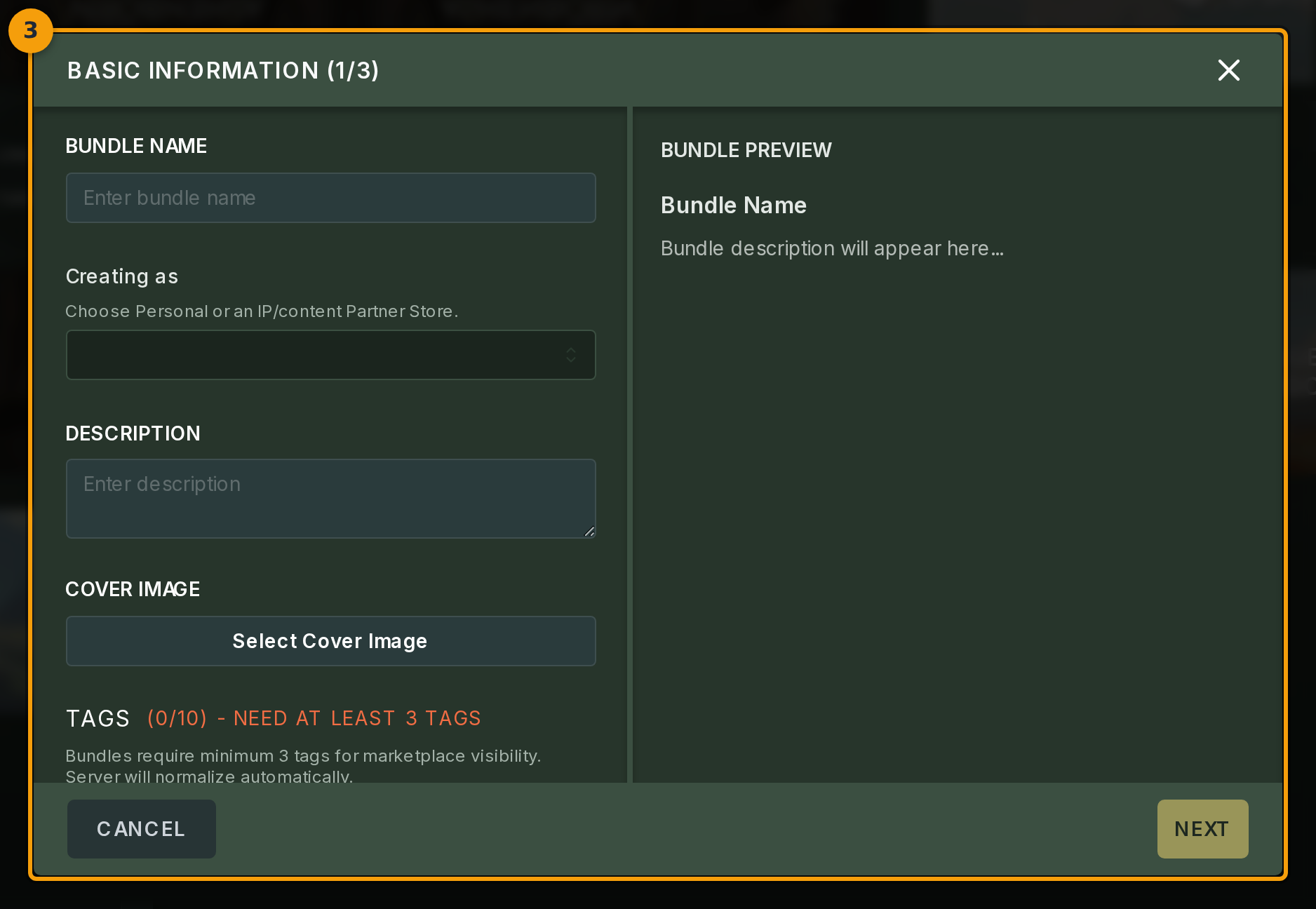
The Bundle dialog opens at step 1 of 3, labelled BASIC INFORMATION (badge 3). The left side holds the metadata form. The right side shows a live preview of how the finished listing appears to a buyer.
Enter a name in the BUNDLE NAME field. Use the Creating as selector to publish under your personal account or an IP or content organisation you belong to. Upload a cover image and write a description in the fields below.
Step 4: Add tags and accept the publishing terms
Scroll down to the TAGS section (badge 4). Add at least three tags so the marketplace can categorise the bundle correctly.
Tick the publishing-terms checkbox below the tags field to confirm you accept the terms. The NEXT button stays inactive until both requirements are met.
Step 5: Review the remaining steps before submitting
Click NEXT (badge 5) to move through the remaining steps. Step 2 asks you to select the Forge content to include in the bundle. Step 3 shows the final draft for review.
Only step 3 carries the Create Bundle action. Clicking it sends the bundle to the publishing pipeline, where it becomes a buyer-visible listing after Fabled's review.