Report a Bug to the Fabled Team
Updated Jul 22, 2026
2 min read
Step 1: Click the bug icon in the top navigation
Click the bug icon (badge 1) in the top navigation bar. The icon appears on every page after you sign in.
The bug report dialog opens immediately. You do not need to be on any specific page to file a report.
Step 2: Enter a short title for the bug
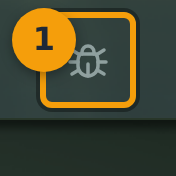
The dialog contains fields for a Title, Description, Severity, and Category.
Type a one-line summary in the Title field (badge 2). Keep it specific: describe what broke, not just that something did. For example: Dice roller returns zero on every roll in Firefox.
Step 3: Describe what went wrong
Fill in the Description field (badge 3). Cover three things: what you were doing, what you expected to happen, and what actually happened.
Steps to reproduce belong in the Steps to Reproduce field below. Keep this field focused on the symptom itself.
Select a Severity and Category from the dropdowns to help the team triage your report faster.

Step 4: Review what gets sent automatically
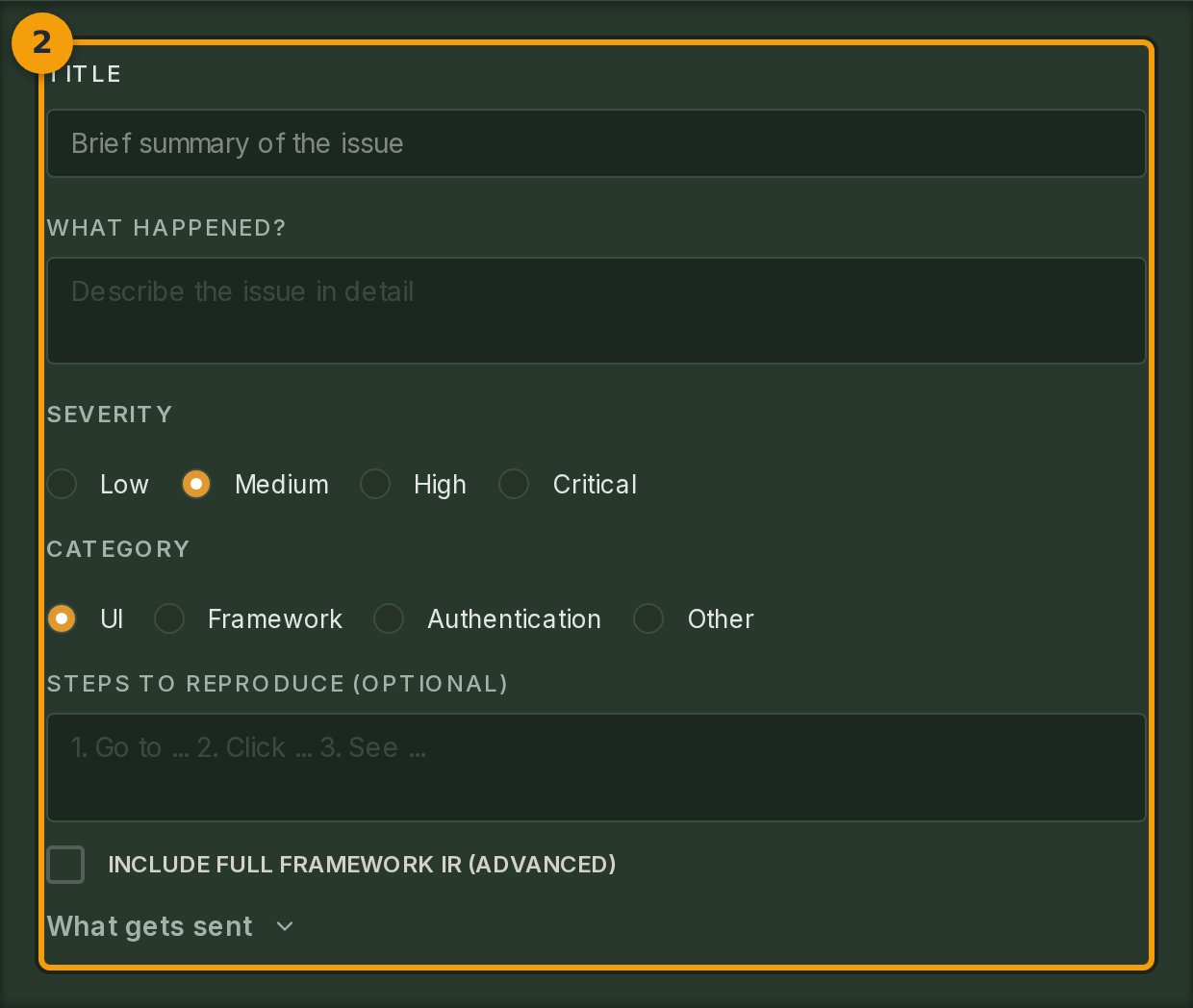
Click What gets sent (badge 4) to expand the disclosure panel. It lists each attachment and shows masked previews of any redacted values.
If you see content you do not want to share, close the dialog and reproduce the issue from a page that does not display that content.
Step 5: Submit the report
Click Send Report (badge 5). Fabled forwards the report and all automatic attachments to the support team.
A confirmation message appears with a unique report ID. Copy that ID and quote it in any follow-up correspondence so the team can locate your report quickly.