
View your order history
Updated Jul 22, 2026
1 min read
Step 1: Open your Orders page
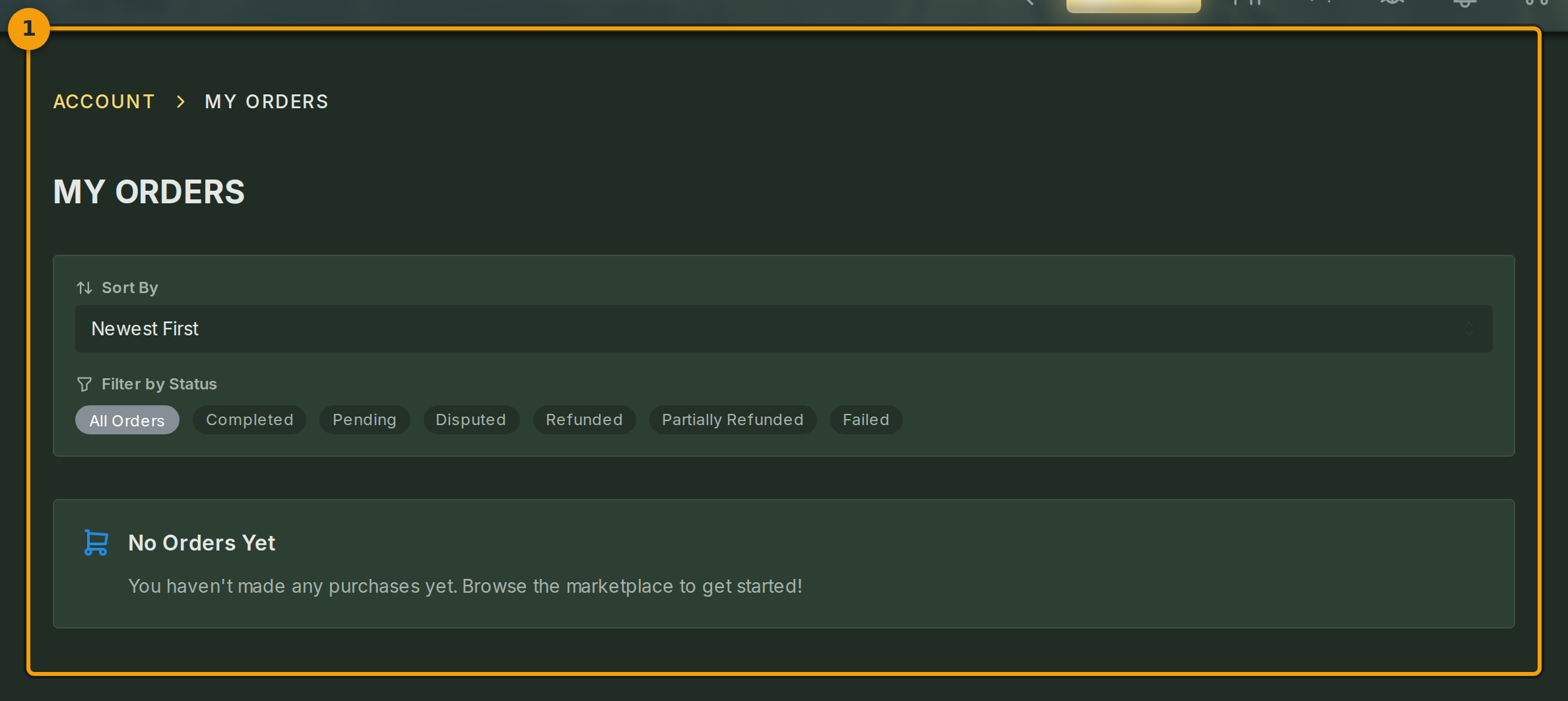
Click your user menu at the top-right of any Fabled page, then select Account. On the account screen, choose Orders from the navigation (badge 1).
The MY ORDERS page lists every marketplace purchase you have made on Fabled. The most recent order appears at the top by default.
Step 2: Filter and sort the order list
Use the status pills above the list (badge 2) to narrow orders by state. Select a pill such as Completed or Pending to show only matching orders.
Open the sort dropdown (badge 2) to switch between Newest, Oldest, and Highest Total. The list updates immediately after each selection.

Step 3: Read the details of an order
Each row in the list (badge 3) shows the order number, the date you placed it, the number of items, the total charged, and the current status.
If you have not made any purchases yet, the page shows a placeholder card instead. Follow the link on that card to return to the marketplace and browse available content.
