
Read your notifications
Updated Jul 22, 2026
2 min read
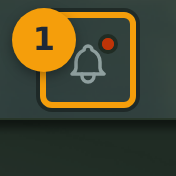
Step 1: Click the bell icon in the top nav
Look for the bell icon (badge 1) in the top navigation bar. A small red dot on the bell means you have unread notifications waiting. No dot means you are up to date.
Click the bell icon to open the notifications dropdown.
Step 2: Review the dropdown header
The dropdown opens below the bell (badge 2). Notifications are grouped by recency, with the most recent at the top.
The header row contains a kebab menu (three vertical dots). Click it to reveal options such as Mark all as read or to close the dropdown.

Step 3: Interact with individual notifications
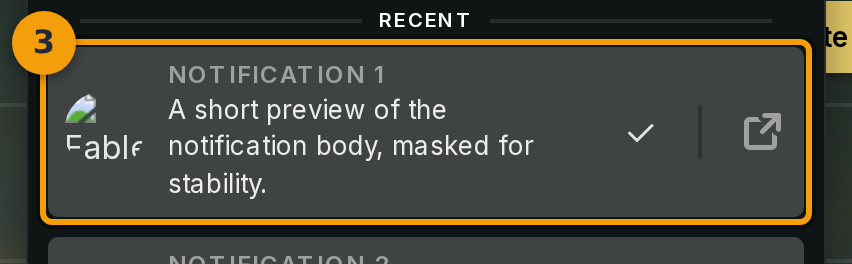
Each row (badge 3) represents a single notification. Types include campaign invites, session reminders, achievement unlocks, @-mentions, friend requests, and system alerts.
Click a row to mark it as read. The row stays in place and no navigation occurs.
To go to the source, such as the campaign, comment thread, or achievement page, click the icon on the right side of the row. This opens the relevant page directly.
Step 4: Load older notifications with Show more
If you have more notifications than fit in the initial view, a Show more button (badge 4) appears at the bottom of the dropdown. Click it to load additional notifications in pages.
You can keep clicking Show more to scroll back through your full notification history without leaving the current page.
