Redeem an Access Code
Updated Jul 22, 2026
1 min read
Step 1: Open your Account settings
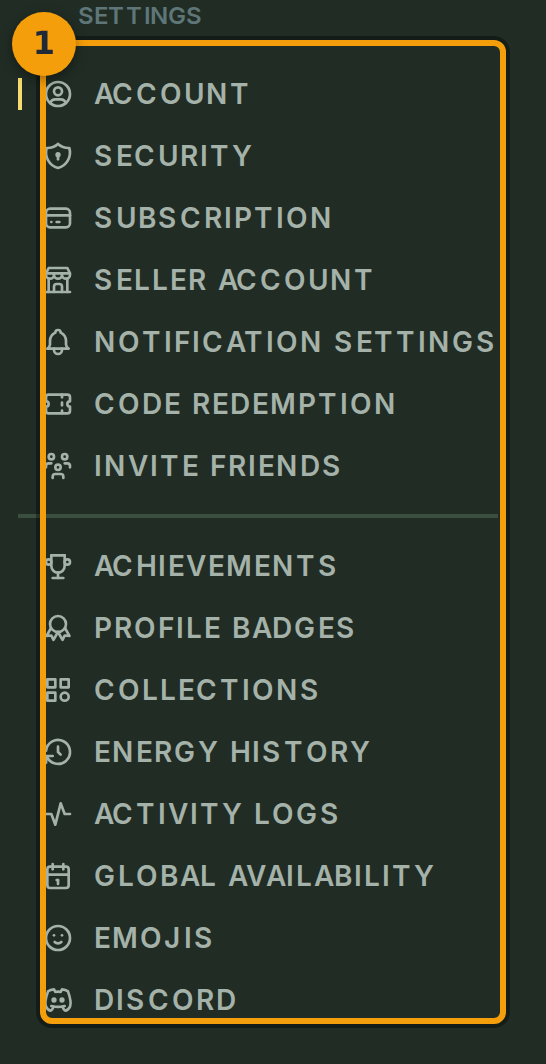
Select your user menu and open Account. The left-hand tab bar (badge 1) lists all account sections: Account, Subscription, Notification Settings, Code Redemption, and others.
Note that Privacy Settings and Change Password are not separate tabs. They sit inside the Account tab.
Step 2: Select the Code Redemption tab
Click Code Redemption in the tab bar (badge 2). The panel that loads is where you convert an access or promotional code into items, perks, or credits on your account.

Step 3: Paste your code into the input field
Click the code input field (badge 3) and paste or type your code. Codes use uppercase letters and numbers. Some are a single token; others are hyphenated. Check the email or card that delivered your code for the exact format.
The field automatically uppercases whatever you type, so you do not need to worry about capitalisation.

Step 4: Validate and apply the code
Click Validate (badge 4) to check the code. If it is eligible, the panel shows a preview of the rewards it grants.
A Redeem button then appears beneath the preview. Click it to apply the code to your account and receive the items, perks, or credits.