Edit your Fabled profile
Updated Jul 22, 2026
2 min read
Step 1: Open your public profile
Select your user menu in the top-right corner of any Fabled page, then choose View My Profile from the dropdown.
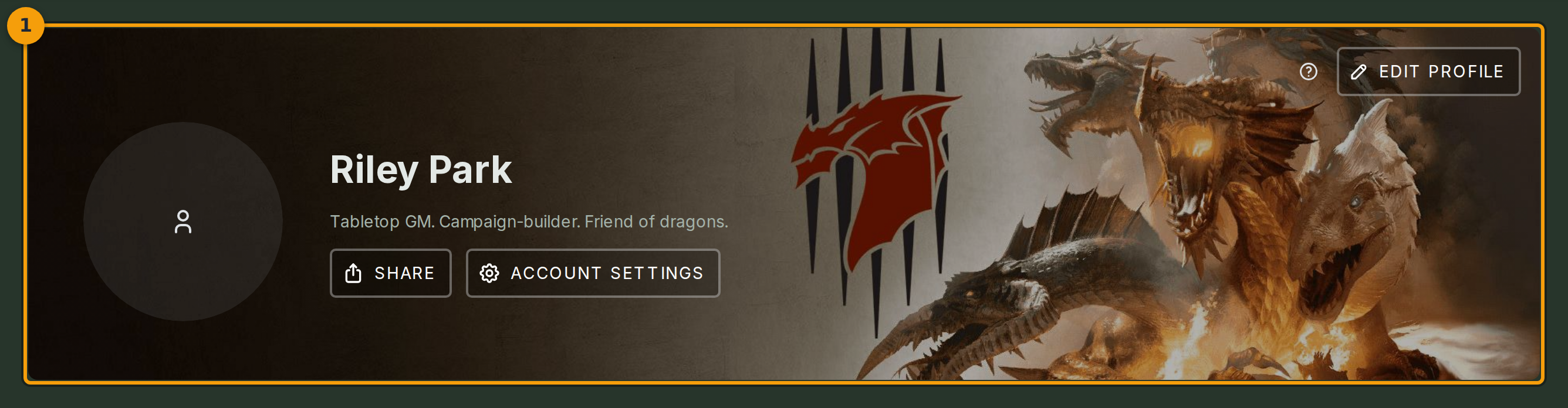
Your profile page (badge 1) loads showing your avatar, display name, and headline. This is the public view other Fabled users see when they look you up or find you in a campaign roster.
Step 2: Open the profile editor and update your display name and headline
Click Edit Profile (badge 2) to open the editor modal.
Type your preferred name into the Display Name field. Friends use this name to find you, and it appears in every campaign roster you join.
Fill in the Headline field with a short tagline. This text appears directly under your display name on your public profile.

Step 3: Write your bio
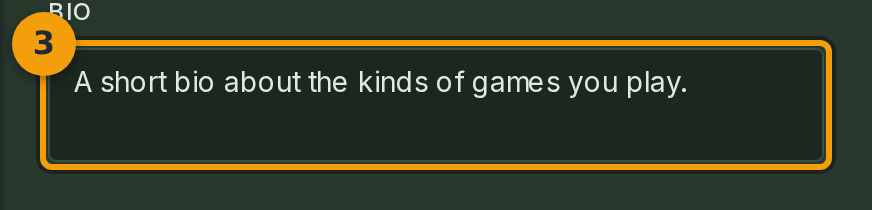
Click inside the Bio field (badge 3) and type a short description of yourself.
One or two sentences work well. Mention the kinds of games you run or play so other users know what to expect when they invite you to a campaign.
Step 4: Upload a new avatar
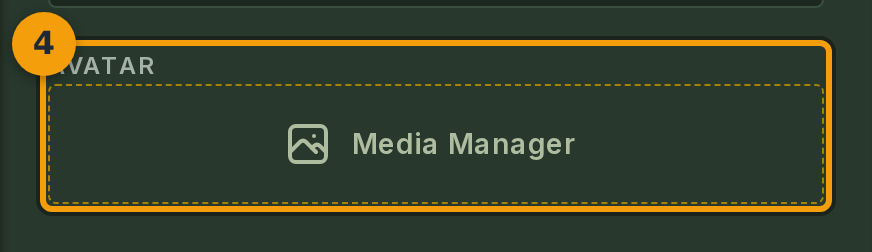
Click the avatar upload area (badge 4) to open your device file picker, then select an image file.
Use a square image at 256 px or larger for the sharpest result. Your avatar appears next to your name throughout Fabled, including in campaign rosters and The Forge.
Step 5: Save your changes
Click Save (badge 5) to commit your changes. Your public profile updates immediately.