
Add a Bundle to Your Wishlist
Updated Jun 7, 2026
2 min read
Step 1: Open the Marketplace
Click Marketplace in the main navigation (badge 1). The marketplace page lists all available bundles. You can save any bundle here to your wishlist and come back to buy it later.

Step 2: Open a bundle's detail view
Click anywhere on a bundle row (badge 1) to open its detail modal. The wishlist toggle is inside the modal, not on the row itself.
Your existing bundles appear as rows on this page. If you have not purchased or browsed any bundles yet, you may see an empty state.

Step 3: Toggle the wishlist heart
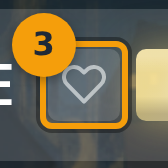
Find the heart icon next to the bundle price (badge 1). An empty, grey heart means the bundle is not yet on your wishlist.
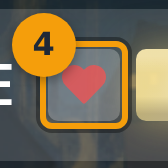
Click the heart once to save the bundle. The icon fills in red to confirm the save.
Step 4: Confirm the bundle is saved
A red filled heart (badge 1) confirms the bundle is now on your wishlist. Click the heart again at any time to remove the bundle. The toggle works in both directions from this same button.
Step 5: Review your saved bundles
Open the Marketplace menu and select Wishlist, or go directly to /marketplace/wishlist. Every bundle you have saved appears here as a card (badge 1).
Click any card to open that bundle's detail view. From there you can buy the bundle or remove it from your wishlist.
