Browse and buy from the Marketplace
Updated Jun 7, 2026
2 min read
Step 1: Open the Marketplace
Select Marketplace from the main navigation (badge 1). The page header shows current promotions and a hero banner for featured content.
The Create A Bundle button at the top right is for sellers. If you are here to buy, ignore it and scroll past the header.

Step 2: Filter by game system
Click a game-system tab (badge 1) below the header. Every section on the page, including featured, popular, and new releases, updates to show only bundles for that ruleset.
To clear the filter, click the active tab again. The page returns to showing all systems.

Step 3: Search and apply tag filters
Type a name or keyword into the search box (badge 1). Results update as you type.
Use the sort dropdown to reorder results by Newest, Popular, Highest Rated, or Price.
Click a tag chip to toggle it on or off. Tag filters are multi-select, so you can combine several at once. If you need a tag not shown in the chip row, click Add Tag to search for it.

Step 4: Browse the Featured panel
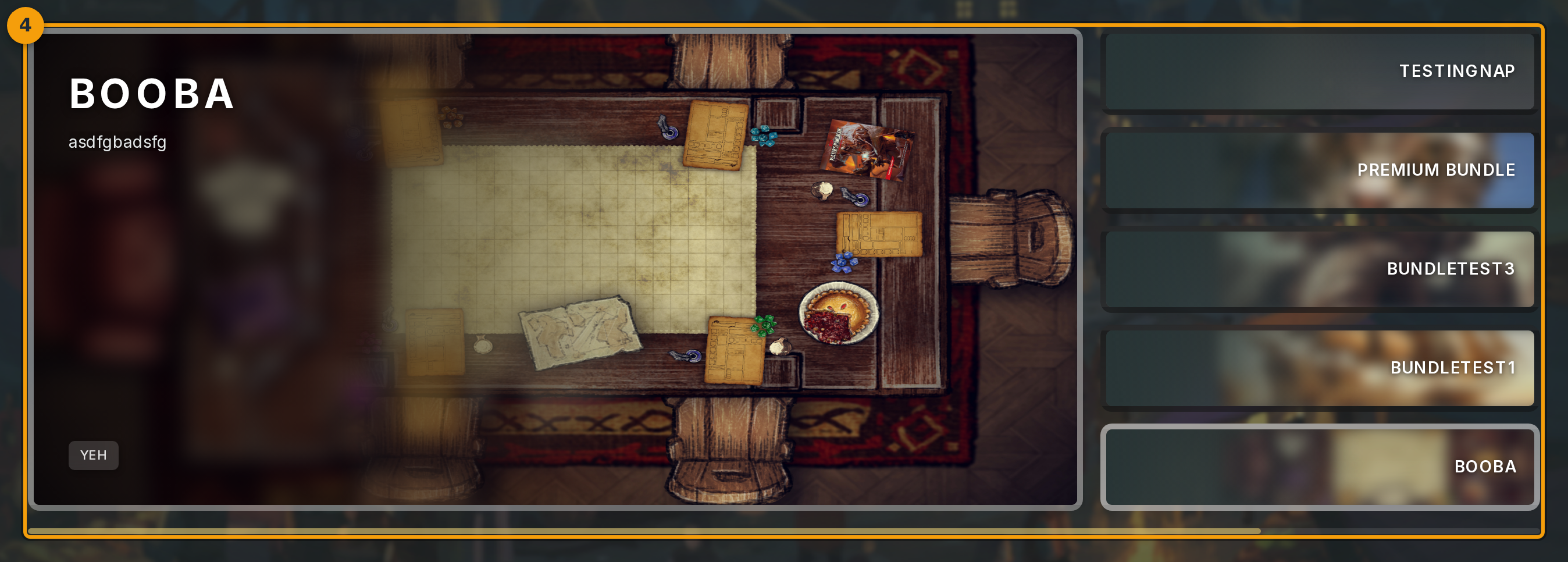
Find the Featured panel (badge 1) below the filter bar. The large card on the left is the current spotlight bundle.
The sidebar to the right lists other hand-picked bundles. Click any sidebar item to bring it into the spotlight. Click the large card to open that bundle's detail page.
Step 5: Select a bundle from Popular or New Releases
Scroll to the Popular or New Releases sections. Each row (badge 1) shows a thumbnail, title, asset count, tags, rating, and price.
Click anywhere on a row to open that bundle's detail page. You stay on the Marketplace; the detail page opens as an overlay.

Step 6: Review bundle contents and buy
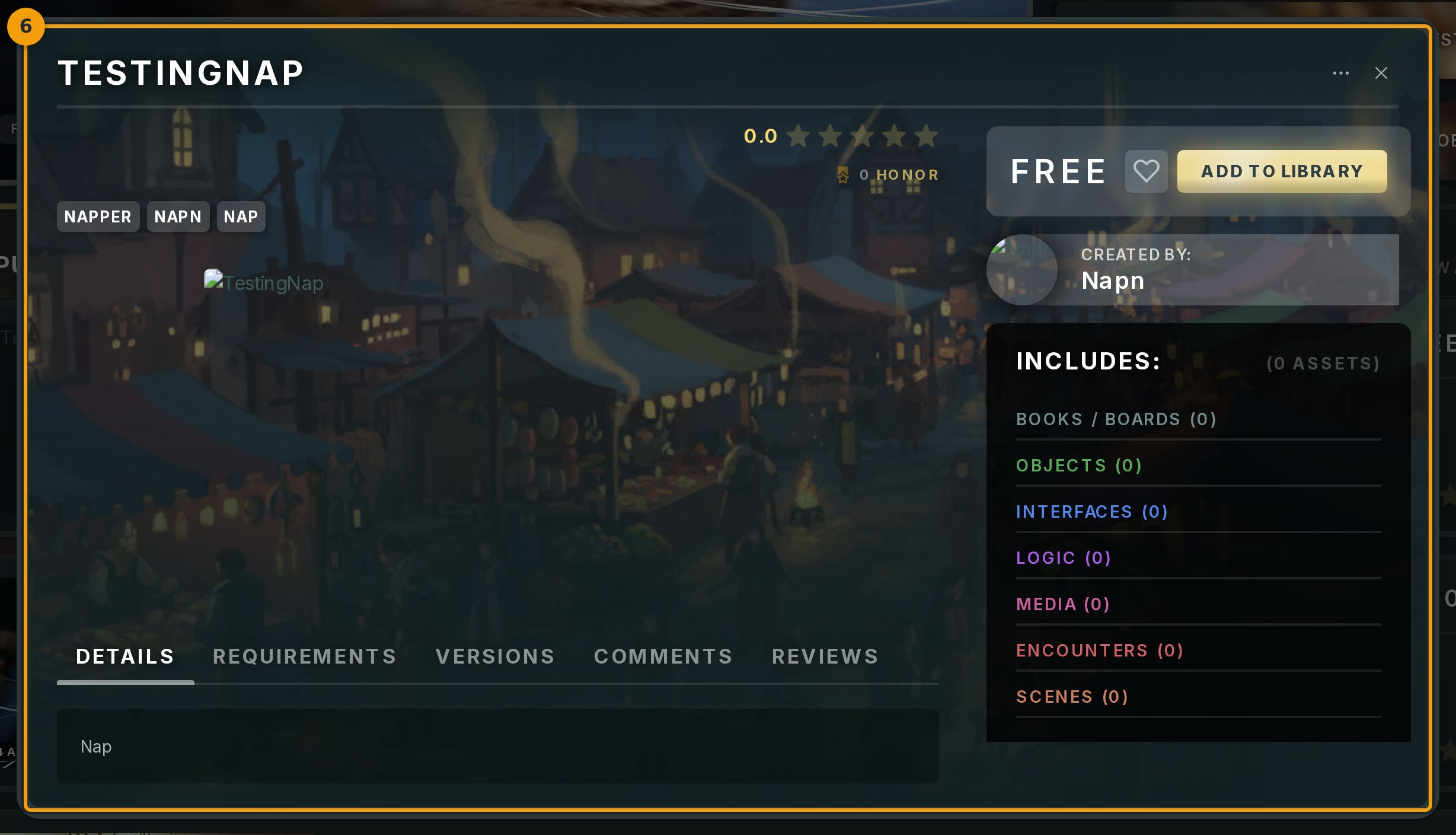
The detail page (badge 1) lists everything included: frameworks, frames, scenes, encounters, and media assets. Scroll through the screenshot carousel and read reviews to assess the bundle before buying.
When you are ready, click Add to Cart to proceed to checkout, or click Wishlist to save it for later. To exit without buying, close the overlay.