Tour the Virtual Tabletop
Updated Jul 22, 2026
2 min read
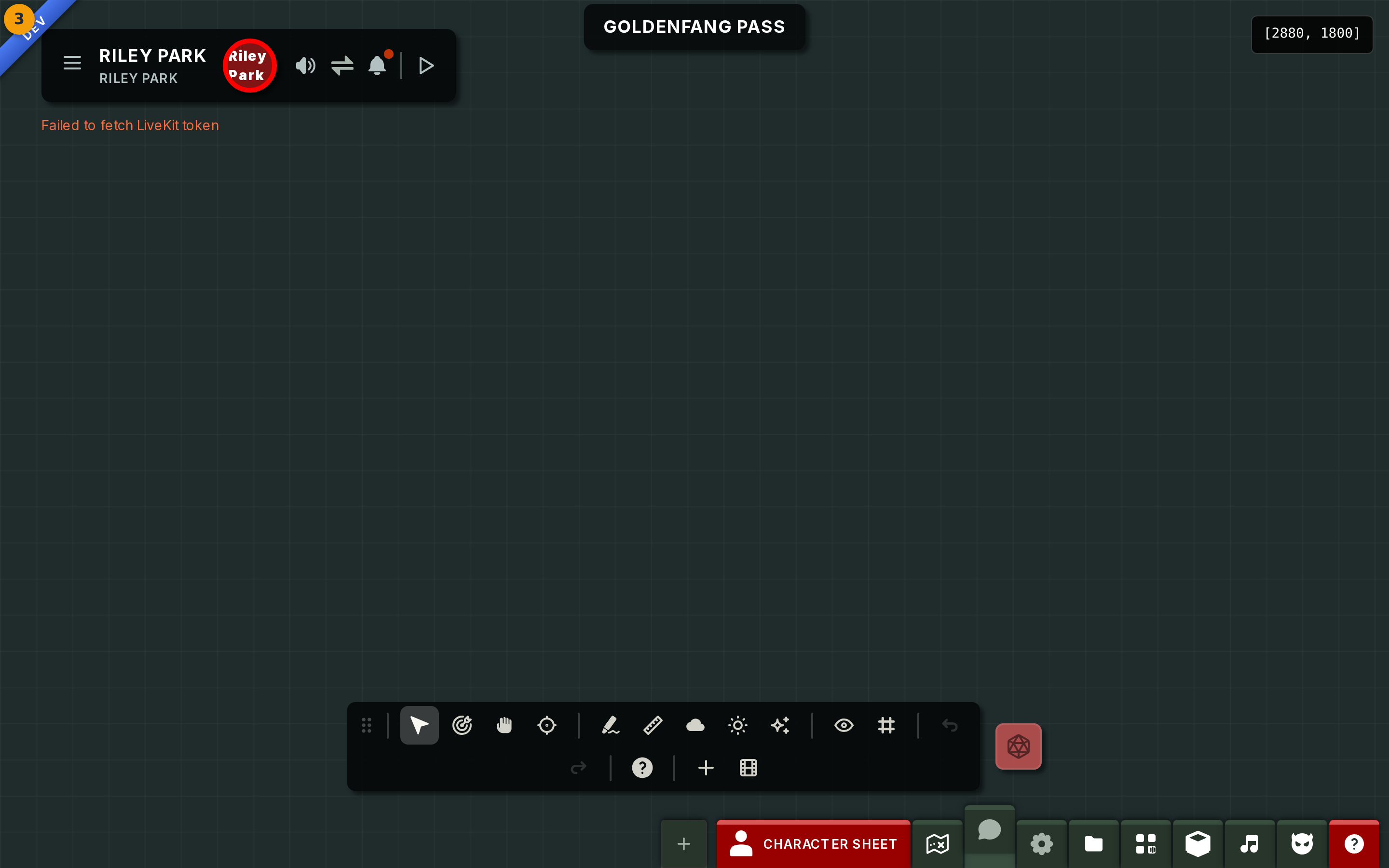
Step 1: Locate the toolbar
Open your campaign in Fabled and enter the Virtual Tabletop. The toolbar (badge 1) appears on screen as your main control surface.
On a wide screen the toolbar floats and can be moved using its drag handle. On a narrower screen it docks as a compact bar along the bottom; tap it to expand the full set of tools.

Step 2: Identify each tool in the toolbar
Examine the buttons in the toolbar (badge 2). Each button maps to one capability:
- Select - pick up and move elements on the map.
- Hand - pan the map canvas.
- Ping - flag a spot so all players can see it.
- Draw - sketch freehand on the canvas.
- Measure - calculate distances between points.
- Fog and Lighting - control player visibility (Game Masters only).
- Visibility, Snapping, Add, the dice roller, Undo, and Redo round out the bar.
Hover any button to read its label as a tooltip.

Step 3: Orient yourself on the map canvas
Look at the large area surrounding the toolbar (badge 3). This is the map canvas, where all tabletop action takes place.
Pan the canvas using the Hand tool or by holding the middle mouse button and dragging. Zoom in and out with the scroll wheel.
Tokens, drawings, and fog all render here, layered above the map background image. You may see your own maps and tokens, or an empty canvas if no map has been set for this session yet.