Create a Character in The Forge
Updated May 21, 2026
2 min read
Step 1: Select a game system
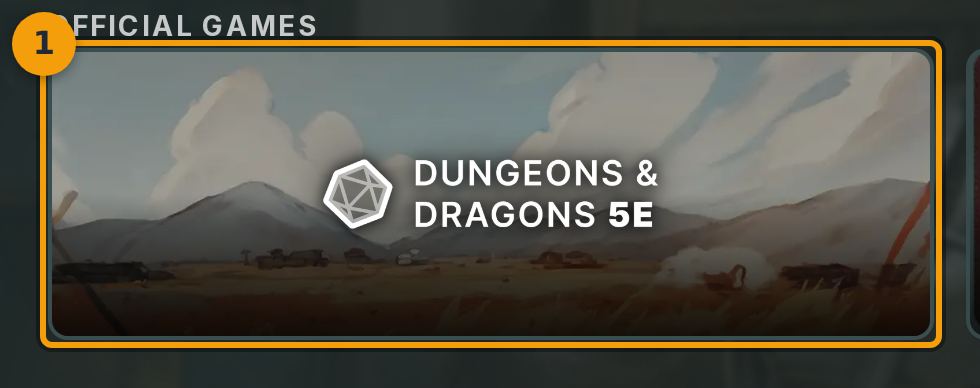
Open The Forge and find the CREATE YOUR CHARACTER screen. Each card represents a ruleset preset.
Click the card for your game system (badge 1). The screenshots here use D&D 5e, but the wizard adapts to whichever system you pick.
Step 2: Choose a creation method
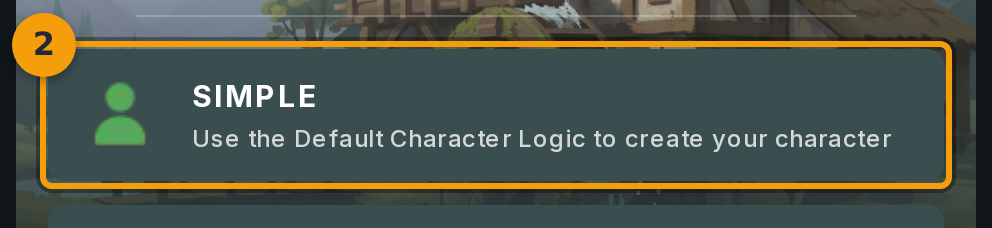
On the HOW WOULD YOU LIKE TO CREATE YOUR CHARACTER? screen, click Simple (badge 2) to use the game's built-in character template.
Pick Advanced only if you need to start from a custom framework. For a first character, Simple is the right choice.
Step 3: Enter a name and pick a token image
Type your character's name into the name field (badge 3) on the CREATE YOUR CHARACTER screen.
Click Select Preset below the name field to choose a token image. Built-in presets are a single click. To use your own art, select the upload option instead.

Step 4: Fill in the core ability scores
Enter a value in each ability score field (badge 4). For D&D 5e a standard starting spread is: Strength 15, Dexterity 14, Constitution 13, Intelligence 12, Wisdom 10, Charisma 8.
Other game systems show their own equivalent fields here. The wizard labels each field according to the ruleset you chose in step 1.

Step 5: Submit the character
When every required field is complete, click CREATE CHARACTER (badge 5) at the bottom of the last wizard step.
Fabled saves the character and opens its detail view in The Forge.

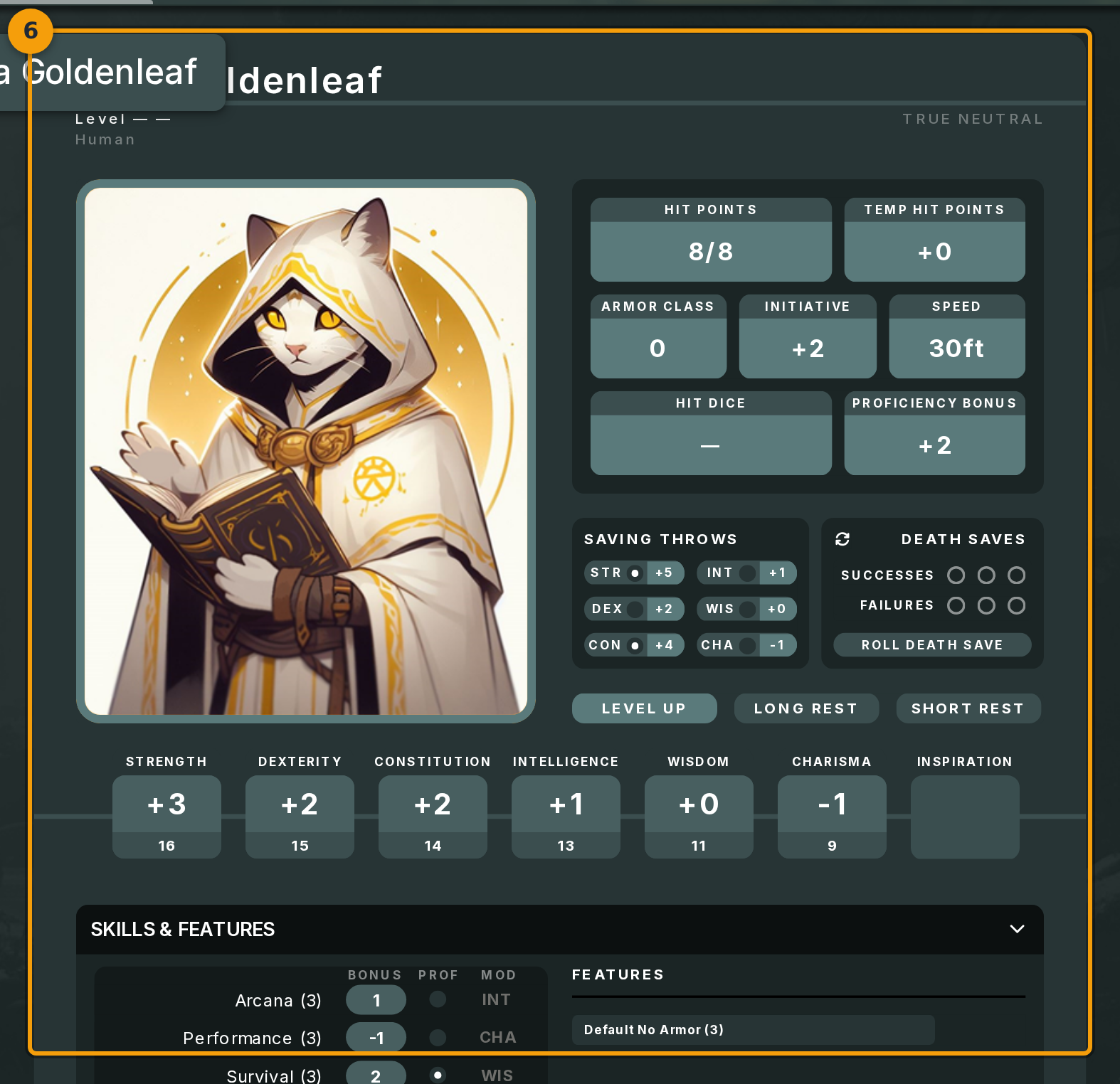
Step 6: Review the finished character sheet
The character detail view (badge 6) shows the full character sheet: stats, equipment, and every section defined by the game framework.
Click any field to edit it. To add the character to a campaign, use the campaign controls at the top of the sheet.