View Your Characters in Fabled
Updated May 20, 2026
2 min read
Step 1: Open the Characters page
Click Characters in the main navigation (badge 1). The page header loads immediately.
The header shows two pieces of information: your total character count and the limit set by your current plan. A Create New Character button sits on the right side of the header (badge 1) when you are ready to add a new character.

Step 2: Switch between lifecycle tabs
Select a tab in the tab bar (badge 2) to filter the character grid by lifecycle state.
Three tabs are available:
- All shows every character regardless of state.
- Active shows only published characters.
- Draft shows characters that are not yet published. Each tab label includes a badge with the count for that bucket.

Step 3: Search and sort the grid
Type any part of a character's name into the search field in the filter row (badge 3). The grid updates as you type.
Use the sort control (badge 3) to flip between ascending and descending alphabetical order. Combine search text with a sort direction to narrow large lists quickly.

Step 4: Open a character card
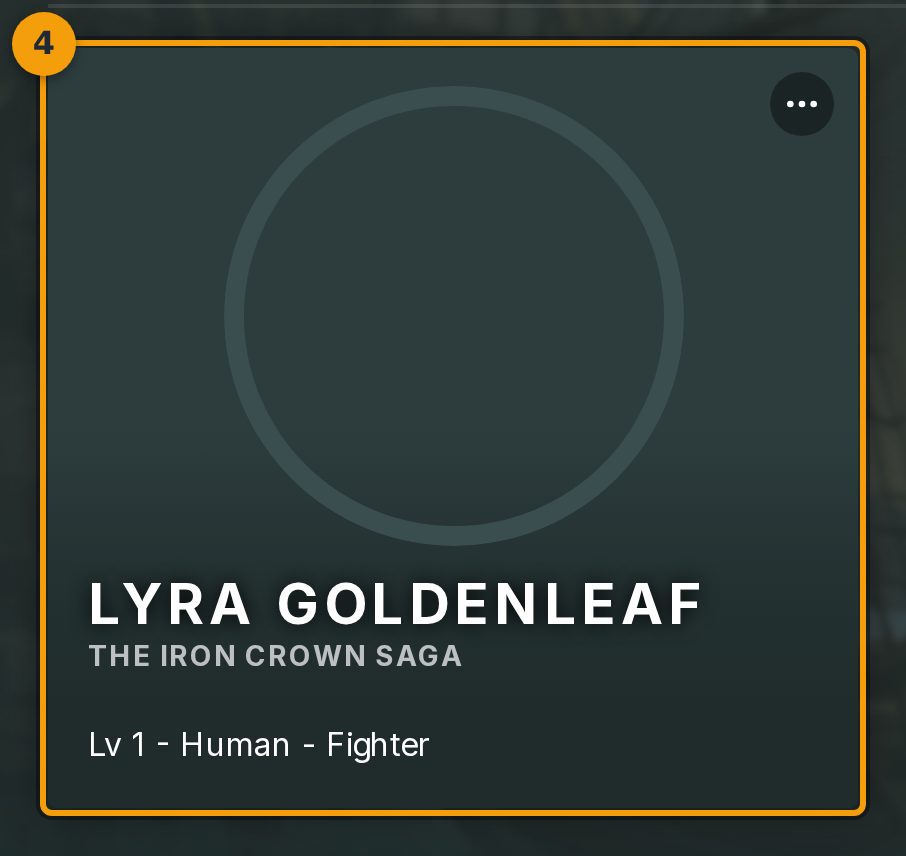
Click anywhere on a character card (badge 4) to open that character. Fabled loads the character detail view directly.
To access secondary actions, click the three-dot menu in the top corner of the card (badge 4). This menu exposes Duplicate, Share, and Delete options.