Explore The Forge
Updated Jul 22, 2026
2 min read
Step 1: Open The Forge
Select Forge from the main navigation (badge 1). On narrower screens it sits inside the ... (more) menu rather than as a top-level item.
The Forge is where you build everything in Fabled: campaigns, characters, items, frames, frameworks, and more. The page heading reads FORGE HOME when it loads correctly.

Step 2: Filter and search game systems
Use the filter row (badge 2) to narrow the list of game systems. You can search by game name, change the sort order, or toggle Show Community Content to include systems published by the Fabled community alongside the official ones.
Leave the toggle off to see only officially supported systems.

Step 3: Select a game system
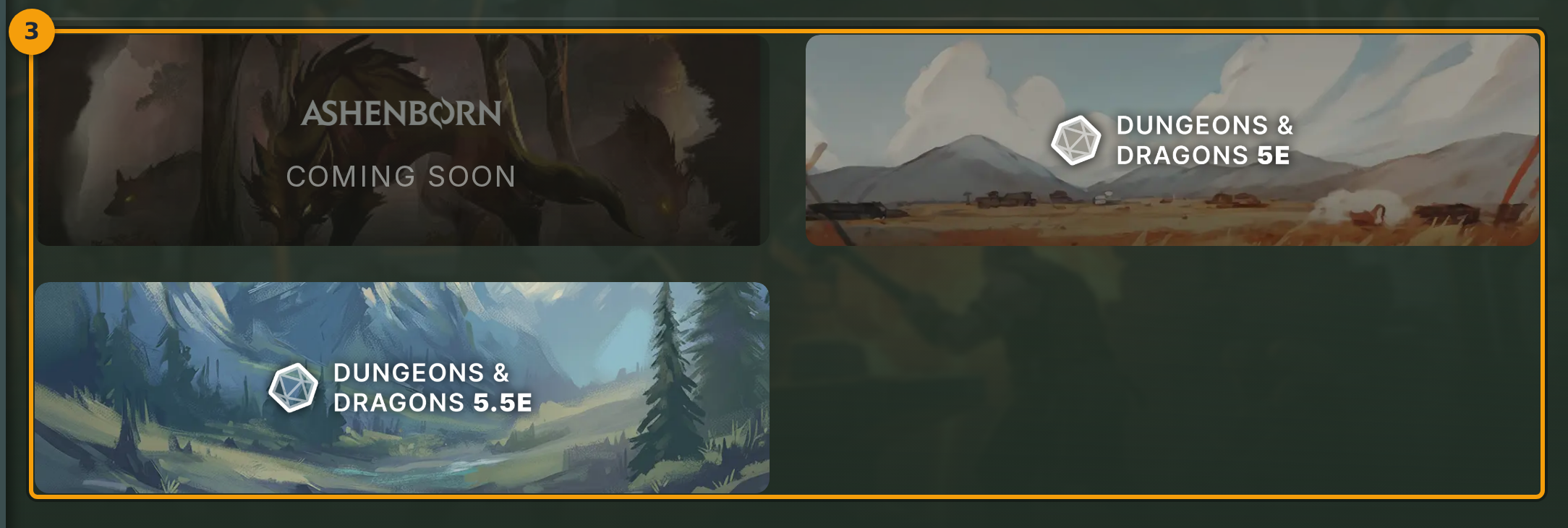
Click any game system card in the grid (badge 3). Each card scopes the content categories and recommendations shown on the next screen.
You see your available game systems here, or an empty state if no systems match your current filter settings.
Step 4: Confirm your selected system
After selecting a system, the page title changes to Forge | Fabled and the heading reads CREATE CONTENT. A badge on the right of the header (badge 4) confirms which game system is active.
To switch to a different system, click the back arrow beside the game system badge. This returns you to the Forge home grid.

Step 5: Browse and choose a content type
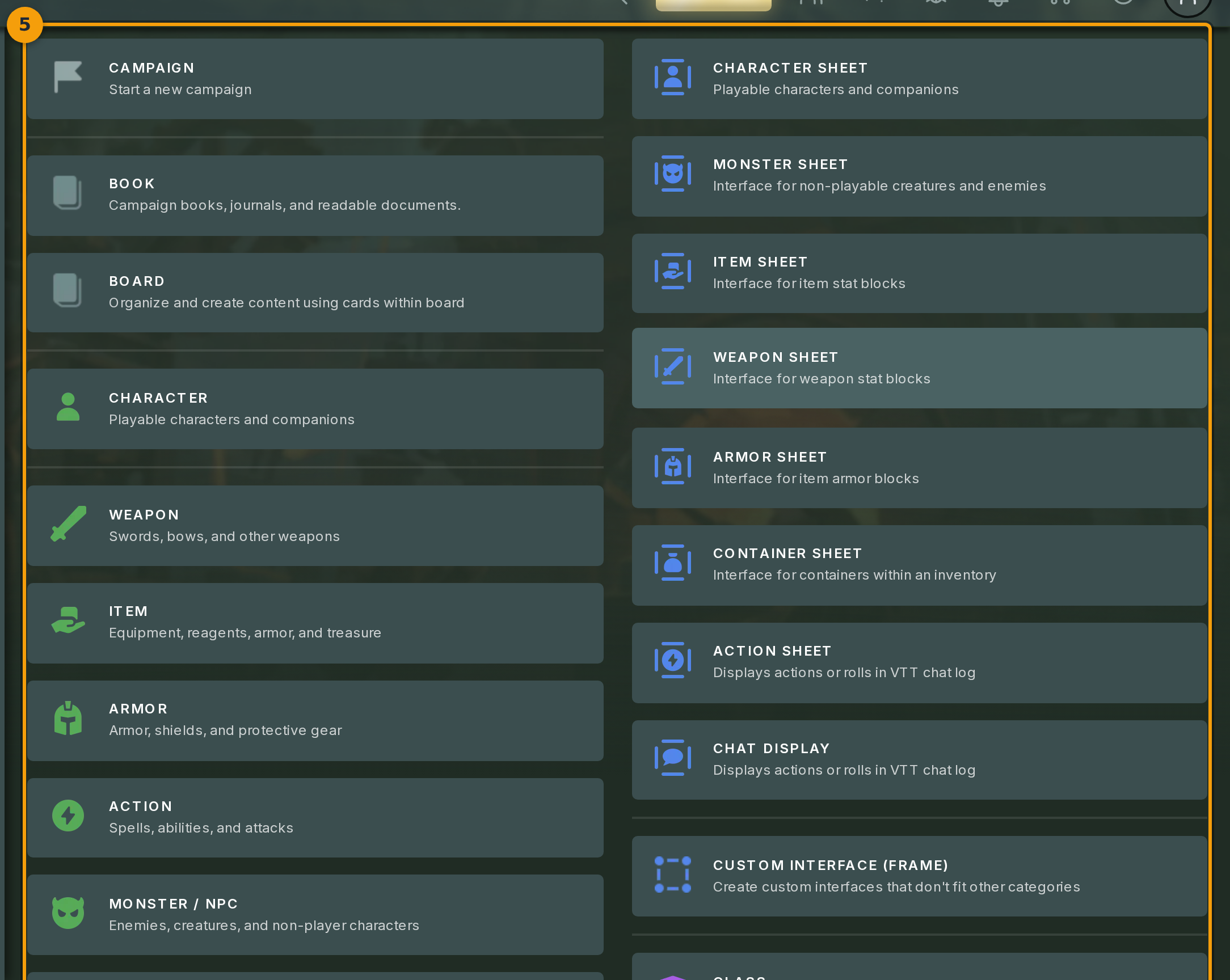
Scroll through the creation surfaces listed in the columns below the header (badge 5). Content types are grouped by kind and the exact set depends on your chosen game system.
Types can include characters and character logic, items, weapons, armour, monsters and NPCs, frames, frameworks, encounters, vendors, loot tables, media, audio, and bundles. Some systems offer thirty or more types.
Use the search and filter bar at the top of the columns to jump to a specific type, then click any card to start creating that kind of content.