Add a Character to a Campaign
Updated May 20, 2026
1 min read
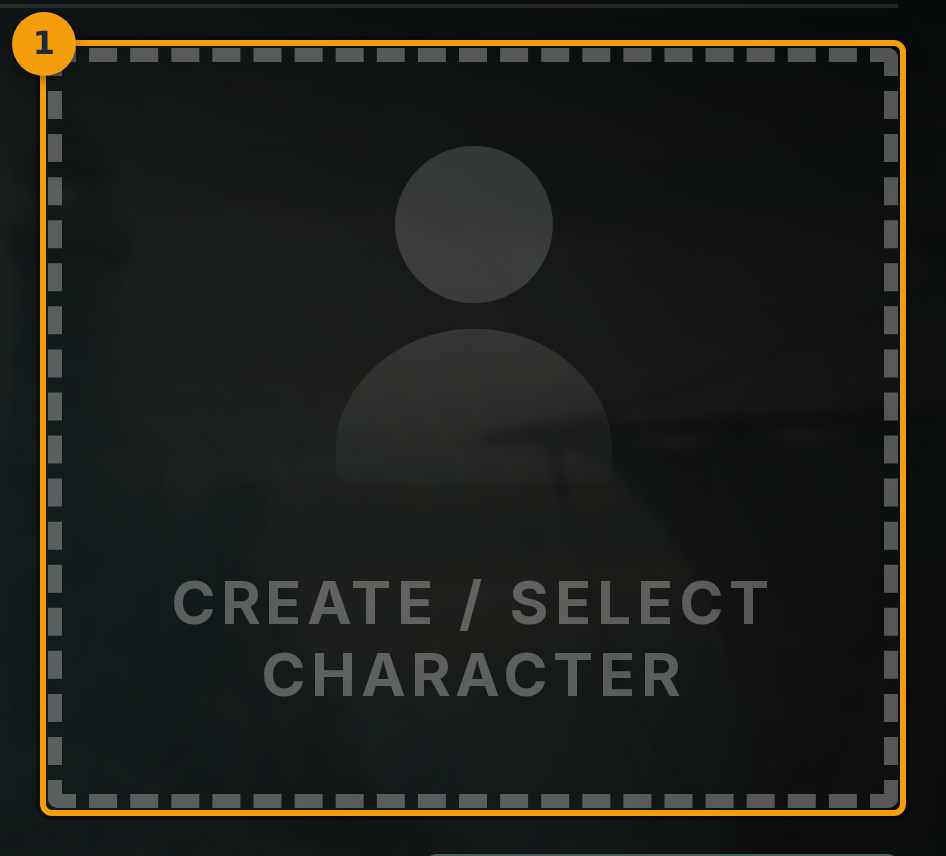
Step 1: Open the character widget on the Overview tab
Open a campaign you own and go to the Overview tab. Find the character widget (badge 1). If no character has been added yet, it shows a Create / Select Character prompt. Click that button to start.
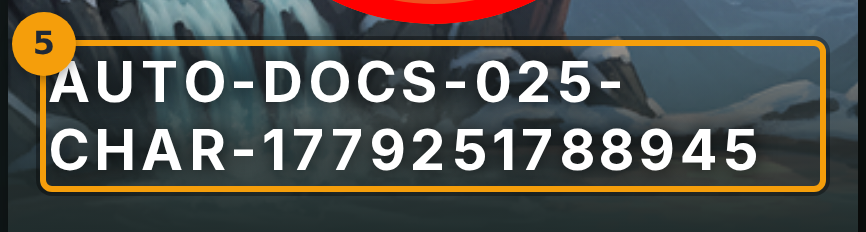
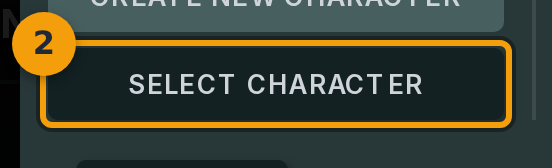
Step 2: Click Select Character to browse your roster
The profile editor opens. Click Select Character (badge 2). This lists characters you already own. Characters are shared across campaigns, so you pick from your existing roster rather than building a new one from scratch.
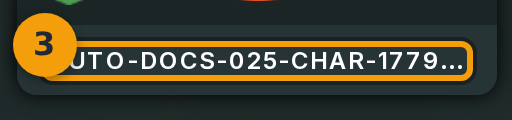
Step 3: Click the character card you want to add
Find the character you want and click their card (badge 3). Cards that appear greyed out use a framework the campaign does not allow. Only selectable cards can be clicked.
Step 4: Save the selection
Click Save (badge 4) to confirm. Fabled creates a campaign-specific copy of the character. Changes you make to this character inside the campaign do not affect the same character in other campaigns.
Step 5: Confirm the character appears in the party
Return to the Overview tab. The character widget (badge 5) now shows the character's portrait, level, and class. The character is part of the campaign party.